What is the Internet?
The Internet and the World Wide Web are related, but they are not the same thing. The Internet is the transport system, and the web is one of the services that uses it.
That distinction helps you troubleshoot faster. If YouTube will not load but your email still works, the issue may be the site, the app, or the web browser, not the entire internet connection.
How the Internet Works
When you open a page, your device sends a request to a router over your home or office network. The router forwards that request to your internet service provider, which routes it through larger networks until it reaches the correct server.
Those requests and replies travel as small units called packets. Each packet carries part of the data and routing details, so routers can forward it toward the destination, and your device can rebuild the full page when the pieces arrive.
- You enter a web address or click a link in a web browser.
- Your device asks the Domain Name System (DNS) for the site’s IP address.
- The request moves through routers and upstream networks.
- The target server sends back files such as HTML, images, style sheets, and scripts.
- Your browser assembles the response and displays the page.
MDN explains that packets also carry headers with details about the sender, receiver, and protocols in use. That matters in real life because slow video calls, stalled uploads, and laggy pages often come from congestion, long routes, or packet loss, not from a total outage.
The FCC’s current fixed broadband benchmark is 100 Mbps down and 20 Mbps up. If your household is well below that level, shared tasks such as Zoom calls, cloud backups, streaming, and online gaming can feel slow even when the line is technically working.
Large services such as NASA image archives, Microsoft apps, and streaming platforms all depend on the same basics: servers, packet switching, and standardized network protocols. The scale changes, but the rules do not.
What is an IP Address?
An IP address is the numeric label that lets one device find another. Without it, data transmission would have no clear destination.
IANA coordinates the Internet’s global IP numbering resources. In practice, that means your home devices, your office router, and the servers behind Gmail or Outlook all rely on a shared addressing system that avoids collisions.
| Type | What it looks like | What you should know |
| IPv4 | Four numbers separated by dots | It uses 32 bits, which allows about 4.3 billion addresses. It still powers much of today’s traffic, but the supply is tight. |
| IPv6 | Longer hexadecimal groups | It uses 128 bits, giving the Internet far more room for phones, tablets, smart devices, and future growth. |
| Public IP address | Visible to the wider internet | Your internet service provider assigns it to your connection so outside services can reach your network. |
| Private IP address | Used inside your local network | Your router uses it to organize traffic among devices in your home or office. |
Most people do not need a static address. Choose one only if you host a service, run remote access tools, manage security cameras, or need predictable access rules for business equipment.
Home networks usually hide private devices behind Network Address Translation, or NAT. That adds a useful layer between your devices and the open internet, but it is not a full security plan, so you still need to keep software updated, use strong passwords, and practice cautious sharing habits.
The Role of DNS in Connecting Devices
The domain name system, aka DNS, acts like the internet’s address book. It takes a readable name and returns the matching IP address so your browser or app can connect. A step-by-step diagram of the DNS lookup process can help clarify the process.
A lookup usually moves through a recursive resolver, the root layer, the top-level domain layer, and the authoritative server that knows the final answer. This sounds technical, but it is why you can type a simple name instead of a long number.
- Recursive resolver: starts the search for you.
- Root layer: points the resolver to the correct top-level area.
- Top-level domain layer: points it closer to the final site.
- Authoritative server: returns the record your device needs.
In the latest public root server data, the DNS root system still uses 13 named authorities run by 12 independent operators, with more than 2,000 operational instances worldwide as of June 2026. That scale is one reason the system stays resilient even when traffic spikes.
DNS caching speeds up repeat visits by saving recent answers. If a site suddenly loads the wrong page after a migration, clearing local DNS or browser cache can help, but do that only after you confirm the site actually changed.
This quiet lookup process supports everything from a FaceTime call to a map search in Google Maps or Google Earth. It also helps keep the digital world usable at scale, which is a core part of online safety and security.
Tools to Access the Internet

You reach the Internet through a mix of hardware and software. Your router and modem create the path, and your web browser or app turns raw network traffic into something usable. Including interactive elements during setup can make the learning process smoother.
Web Browsers: Gateways to the Web
A web browser fetches files from servers and turns them into pages you can read and use. Chrome, Safari, Firefox, Brave, and Vivaldi all do this job, but they emphasize different strengths.
The best choice depends on what you value most: compatibility, privacy, battery life, or extension support. If you use several tools for school or work, keep at least two browsers installed so you can quickly test a broken page.
| Browser | Useful built-in feature | Best fit for |
| Chrome | Safety Check and strong site compatibility | General use, web apps, and services that need broad support |
| Firefox | Total Cookie Protection enabled by default | Privacy-focused browsing and clean troubleshooting |
| Safari | Private Browsing blocks known trackers and strips tracking from links | Apple devices and users who want efficient battery use |
If a site breaks in one browser, first disable extensions one by one. Mozilla and Google support pages both point to extensions as a common cause of missing buttons, failed logins, and pages that render only half. A brief interactive checklist can help diagnose common browser issues.
A simple troubleshooting order works well: reload the page, clear cache, test in a private window, then try another browser. A comparison of troubleshooting steps in a diagram could improve clarity.
Search Engines: Finding Information Easily
Search engines help you reach online resources, but the right tool depends on the task. Google Search and Bing are good starting points for broad topics, while DuckDuckGo appeals to users who want more privacy and quick shortcuts called bangs.
- Use quotes for exact phrases when a search engine keeps widening your query.
- Use the minus sign to remove a word that pollutes results.
- Use site-limited searches when you want results from one organization only.
- Compare engines if a query feels weak, because ranking systems differ.
For research, move beyond general search engines. Semantic Scholar’s official site now lists more than 233 million papers, and the federal science search portal says it searches more than 200 million pages of U.S. scientific information. That makes them useful for studies, not blog posts.
Google Scholar, CORE, BASE, and library portals also help you find papers and reports. If you are writing for school or work, save useful results immediately in folders or a reference manager so you do not repeat the same search later.
Use DuckDuckGo, Bing, or Google with intention. A sharper query usually saves more time than opening ten weak results. Reviewing interactive examples on different search engines can clarify their unique features.
Using the World Wide Web and Interacting with the Internet

Most online activity happens through websites, forms, email, and apps. Once you understand how those pieces work, the web feels less mysterious and much easier to control. Including real-life examples makes technical topics more engaging.
Understanding and Using Websites
Websites combine text, media, and code. The early web that Tim Berners-Lee introduced was document-based, but modern sites often behave more like software, with logins, video, maps, comments, and live updates.
That change explains why a page can look blank even when the address is correct. A blocked script, a broken cookie, or an extension conflict can stop key features from loading. An interactive simulation of website behavior may help illustrate these issues.
- Use the main menu or site logo to reset your location if you get lost.
- Check dates, authors, and update notes before you trust advice or numbers.
- Expect forms, comments, and media players to rely on JavaScript.
- Refresh the page or switch browsers when buttons do not respond.
- Sign out on shared devices, especially after shopping, banking, or schoolwork.
A lock icon tells you the connection is encrypted. It does not tell you that the person or business behind the page is honest.
That warning matters because scammers copy real layouts well. If a seller, donation page, or login form feels rushed or oddly worded, pause before you share personal information. A case study can help identify red flags.
Once you know how websites behave, it becomes easier to use everything from Google Street View and Google Maps to NASA galleries, museum collections, and learning sites such as Khan Academy. Interactive examples can further elucidate these concepts.
Setting Up and Using Email Accounts
Email remains the backbone of account recovery, receipts, work messages, and school notices. A solid setup in Gmail, Outlook, or Apple Mail saves time and prevents missed messages.
Start with a provider you will keep for years. Then turn on two-factor authentication, add recovery options, and make sure your primary inbox isn’t tied to just one phone you might lose. An animated guide can illustrate the email configuration process.
| Protocol | Best use | Why it matters |
| IMAP | Most users | It keeps mail synced across devices, so read, sent, and deleted actions stay consistent. |
| POP3 | Older single-device setups | Microsoft notes that POP is one-way sync, which often causes confusion when messages seem to vanish or reappear on another device. |
| SMTP | Sending mail | It handles outgoing messages from your mail app. |
- Use IMAP unless you have a specific reason to keep mail on a single device.
- Create clear subject lines so recipients can scan messages quickly.
- Check spam and junk folders before assuming a message never arrived.
- Open unexpected attachments only after you confirm them with the sender.
Google also warns that older mail apps may not support the modern security standards Gmail recommends. If a legacy client keeps failing, update the app before you assume the server is down.
Staying Safe Online
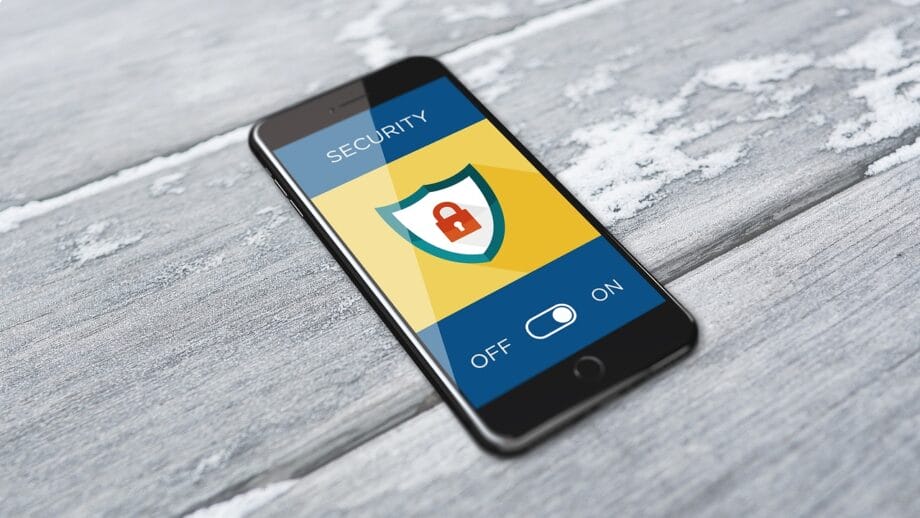
Protecting Personal Information
CISA recommends strong passwords, a password manager, software updates, and multifactor authentication because those steps block many common attacks at low effort.
NIST now stresses length over clever complexity, which is why a long passphrase is usually stronger and easier to manage than a short, tricky password.
- Use a password manager to create unique passwords for every account.
- Turn on two-factor authentication for email, banking, shopping, and cloud storage.
- Share the minimum personal information needed to complete a task.
- Keep your phone, browser, and apps updated so known flaws get patched.
- Delete old accounts you no longer use because abandoned logins still pose a risk.
Think about data in layers. Your browser history, saved payment methods, account recovery settings, uploaded documents, and old devices all hold useful information for criminals. Summarizing these layers can help visualize the risks.
Recognizing Secure Websites
Secure sites protect the connection between you and the server. They do not guarantee that a store, seller, or message is legitimate.
- Look for your browser’s secure connection indicator before entering passwords or payment details.
- Read the full site name carefully, because scam pages often use slight misspellings.
- Pay attention to full-page browser warnings, not just small icons in the address bar.
- Use up-to-date browsers to benefit from current phishing and malware protection.
- Report suspicious sites or payment fraud to the FTC as soon as possible.
Chrome support explains that a red warning screen is more serious than a missing lock icon. If you see that type of alert, back out instead of trying to force the page to load.
Also watch the behavior of the page itself. Pop-ups that demand instant payment, fake countdown timers, or support messages that push you to call a random number are strong signs of fraud.
Using the Internet for Everyday Needs

The Internet is most useful when it solves ordinary problems well. Shopping, streaming, appointments, bills, and map searches all rely on the same core tools, but each task has its own risks. A diagram comparing these tasks can assist understanding.
Online Shopping and Payment Safety
The FTC says paying by credit card gives you the strongest protection if an online purchase turns out to be a scam or a dispute. That one choice can make chargebacks and fraud reviews much easier.
- Use a credit card instead of a debit card when possible.
- Turn on transaction alerts and check statements every week.
- Buy from sellers with clear contact details, returns, and shipping terms.
- Do not save card details on small sites you may never use again.
- Cancel trial subscriptions before the renewal date if you do not want to be charged.
Fraudsters often copy store layouts, reviews, and product photos. Slow down when prices are far below the normal range or when checkout pages ask for extra identity data that a simple purchase does not require.
Entertainment: Streaming and Gaming Platforms
Streaming and gaming are where broadband quality becomes obvious. YouTube, Spotify, Apple Music, and multiplayer games can all work over modest connections, but high-quality video, fast uploads, and low-latency play demand more consistency.
Download speed affects how fast content reaches you. Upload speed affects how well you send game voice chat, live video, cloud saves, or long clips to social platforms. A comparison chart of these factors can help clarify their differences.
- Use wired Ethernet for competitive gaming when you can.
- Move your router into an open, central location for better Wi-Fi.
- Check whether your internet service provider applies data caps or slowdowns.
- Use parental controls and platform filters for younger viewers and players.
If a stream looks blurry instead of stopping, the service is often lowering quality to keep playback going. That is a useful clue that the problem may be bandwidth, congestion, or Wi-Fi placement rather than the platform itself.
Accessing Health and Wellness Resources
Reliable health information should come from medical institutions, public agencies, and recognized clinics. MedlinePlus and Mayo Clinic are strong starting points because they organize symptoms, conditions, and treatment basics in plain language.
For care access, HHS says telehealth can remove barriers such as transportation problems, provider shortages, and mobility issues. That makes virtual visits especially useful for follow-ups, medication questions, mental health support, and routine counseling.
- Use telehealth for convenience, but do not treat it as a full substitute for urgent or hands-on care.
- Prepare a short symptom timeline before the visit so you do not forget key details.
- Ask about captions, interpreter support, or accessibility tools if you need them.
- Confirm licensing, privacy policies, and payment terms before starting with any counseling platform.
Services such as BetterHelp and Talkspace have made online counseling more familiar, but you should still review therapist credentials and crisis options before you commit. When symptoms are severe, new, or escalating, contact a licensed clinician directly.
Maximizing Internet Benefits

The Internet does more than entertain. It powers remote work, file sharing, digital classes, research, and daily communication across homes, schools, and businesses.
Remote Work and Collaboration Tools
Remote work depends on a stack of tools, not one app. Video meetings, chat, file storage, calendars, and project tracking each solve a different problem.
| Tool | Current free-plan detail | Best use |
| Zoom | Basic meetings run up to 40 minutes | Client calls, classes, and screen sharing |
| Microsoft Teams Free | Meetings run up to 60 minutes and include 5 GB of file storage | Chat, calling, and lightweight collaboration |
| Google Drive | Google lists up to 15 GB shared across Gmail, Drive, and Photos | Document sharing and collaborative editing |
| Dropbox Basic | Starts with 2 GB free | Simple file sync and transfer |
Choose tools based on the workflow, not the brand. Zoom and Teams handle live conversation well, while Google Drive and Dropbox solve storage and sharing problems better than email attachments. A comparison table can further clarify the strengths of these tools.
Chat apps such as Slack and project tools such as Basecamp help teams cut inbox clutter. Pair them with clear rules on file names, meeting notes, and channel use so information stays findable.
Educational and Learning Platforms
Learning platforms work best when they align with your goals. Khan Academy is strong for fundamentals, Coursera works well for structured career paths, Udemy is useful for targeted skill practice, and Canvas helps schools organize assignments, grades, and feedback.
Khan Academy says its trusted, standards-aligned lessons cover math, science, history, grammar, AP, SAT, and more, and 90% of U.S. teachers who have used it found it effective. That makes it one of the best free starting points for students who need steady practice.
- Use Khan Academy for foundational practice and repeated practice.
- Use Coursera when you want a guided certificate path that fits within less than a year.
- Use Udemy for targeted skills, especially software, business, and technical topics.
- Use Britannica or Wikipedia to orient yourself, then move to primary or institutional sources.
Udemy says its Personal Plan includes 26,000 courses from a larger catalog, so it works well if you want broad exploration. For younger learners or lighter discovery, SciShow Kids, Blob Opera, museum archives, and the Raymond M.
Strong learning habits still matter more than the platform. Set a schedule, save notes outside the app, and test what you learned with a real task, not just a completion badge.
Staying Updated with Reliable News Sources
Getting current information online is easy. Getting dependable information takes more care. A side-by-side comparison of sources could help illustrate reliable news practices.
Pew reported that the share of Americans who get news on YouTube rose from 23% in 2020 to 32% in 2024. That makes video a major part of the news mix, but it also means creator style can outrun verification.
- Check whether the source links to documents, interviews, or direct evidence.
- Compare big claims across more than one publisher before you repeat them.
- Separate reported facts from commentary, reaction, and sponsored content.
- Use Google News, major local outlets, and public-interest reporting to balance personality-led feeds.
The 2025 Digital News Report from Reuters Institute found that many people first verify questionable claims with trusted news brands and official sources. Follow that pattern when a story affects your money, health, vote, travel, or safety.
Podcasts, newsletters, and personality-led channels can be useful, but do not let any single feed become your whole information diet.
Conclusion

The Internet becomes much easier to use once you separate the network from the World Wide Web, understand what an IP address and the domain name system do, and recognize how web browsers, routers, servers, and internet service providers work together.
You need a device, an internet service provider such as Verizon or AT&T, and a reliable web browser to get online well. Put safety habits in place, use stronger passwords, enable two-factor authentication, and verify sources before you trust them.


