Quick Summary:
MBOX files can’t be opened directly on Windows and often require specific tools. This guide breaks down the top 5 proven ways to access MBOX data on both Windows and Mac – using free options like Thunderbird, Apple Mail, and Gmail, as well as more flexible solutions like converting MBOX to PST for Outlook.
For the fastest, safest, and most user-friendly experience – especially with large files – an MBOX Converter tool is the most reliable choice, offering quick previewing, secure conversion, and support for multiple formats without any email client setup.
Introduction
Email information has always been an important part of both personal and professional communication. As email users have transitioned between platforms over time, many have encountered an unfamiliar file type – the MBOX file format. But what is it? How do users feel about opening on Windows or Mac? If you have ever asked how to open MBOX files without too much hassle. This updated guide will provide 5 ways – from free manual efforts to professional time-savers – to open an MBOX file.
What is the MBOX File Format?

An MBOX (Mailbox) file is a standard file format that was used by multiple email clients to save multiple emails in a single text file. Each message is saved sequentially. The MBOX format is convenient for backup or migration purposes. There are multiple common email applications that create MBOX files, such as Mozilla Thunderbird, Apple Mail, aka Mac Mail, Eudora, SeaMonkey, Google Takeout, K-Mail, Gmail, etc.
In short, if you have ever exported a mailbox from Gmail, Thunderbird, or Mac Mail, there are users who can get the MBOX file on the system.
Reason Why Can’t You Open an MBOX File Directly?
Despite its simplicity, an MBOX file cannot be opened directly in Windows or Outlook without specific software or email clients. It’s basically a txt, or you can say a database file – that is not a readable format. If anyone wants to open an MBOX file in standard email clients like Microsoft Outlook or Mail apps on Windows, then they need a method or need to use third-party software.
Here, users can learn why users face these types of issues:
- Windows doesn’t provide a native MBOX viewer to open MBOX files.
- Apple Mail can open MBOX files, but importing them incorrectly may create errors.
- Large-sized MBOX files can get corrupted or load slowly.
In this situation, users need the right method to open and view MBOX files correctly – without damaging MBOX data.
Top 5 Proven Ways to Open MBOX Files on Windows & Mac
Now users need to explore the most effective manual methods first, followed by the most reliable solution for quick access to view the MBOX file without losing data.
1. Mozilla Thunderbird
As everyone knows the fact that the Thunderbird is developed by Mozilla. One of the best and free tools to open and read MBOX files.
Steps to Open MBOX File by Thunderbird:
- Download & install Thunderbird on the computer.
- If you have already installed it, then you can run Thunderbird.
- Launch the application.
- Users need to set up a dummy or temporary account.
- After that, install the ImportExportTools NG add-on in Thunderbird by simply clicking on
- Go to the Menu and choose “Add-ons and Themes” and click on the “Extensions”.
- Search for ImportExportTools NG.
- Install it and restart Thunderbird.
- After going to Local Folders and clicking “ImportExportTools NG,” choose the option “Import MBOX file.”
- Browse and select the MBOX file from the system.
Additional Note: By using this method, anyone can now view, read, and even search through MBOX emails easily. This method just needs an add-on in Thunderbird, and after importing MBOX files in Thunderbird, you can access your emails without losing files.
Pros:
- 100% free and open-source.
- Available for Windows, Mac, and Linux.
Cons:
- Need for installation and configuration.
- This method can be slow with large MBOX files.
2. Apple Mail
If you are a Mac user and want to open any MBOX file in Apple Mail, then you need to follow some steps. Basically, the Mac Mail app provides a built-in way to import and open MBOX files.
Steps to Open MBOX File by Apple Mail:
- Open Apple Mail on Mac.
- Go to the File menu.
- After that, select the Import Mailboxes option.
- Choose the Files in MBOX format option.
- Browse the system and select the desired MBOX file.
- Once imported, the mailbox appears in the Mailboxes section.
- Now users can easily read MBOX emails from the imported MBOX file directly within Apple Mail.
Pros:
- Native and free method for Mac users.
- Easy and secure.
Cons:
- Only works on macOS.
- Large MBOX files might take longer to load.
- One wrong move can corrupt the whole MBOX file.
- Small-sized MBOX import is safer.
3. Gmail to Open MBOX File
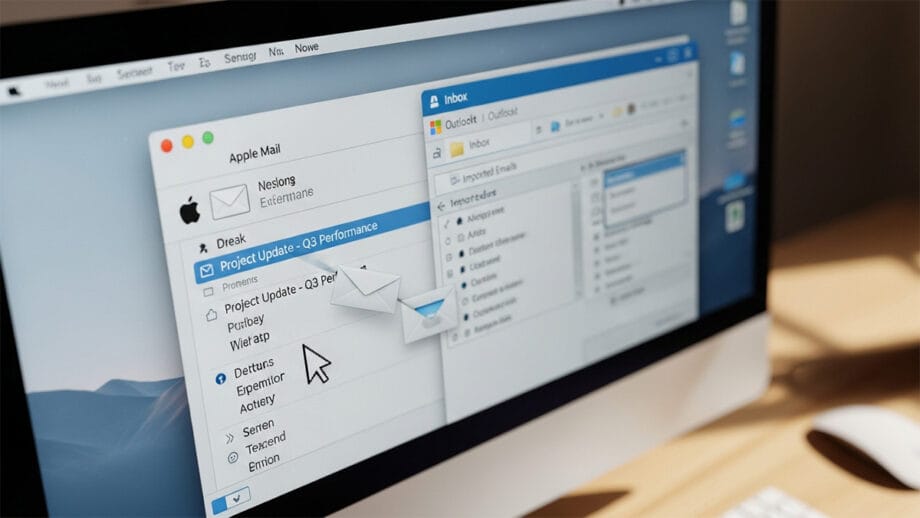
Another proven way to open and access MBOX files is by using Gmail. Since MBOX is Gmail’s own export format, importing it back allows users to view all their emails online.
Steps to Open MBOX File in Gmail:
- Install Thunderbird.
- Set up a Gmail account by using IMAP.
- Import the MBOX file into Thunderbird as shown in Method 1.
- Wait for the MBOX emails to appear in Thunderbird.
- Drag and drop them into the Gmail mailbox folder.
- Once the syncing is done, log in to Gmail.
- Imported MBOX emails will now appear in the account.
Pros:
- Access MBOX emails from anywhere via Gmail.
- Free and secure by using IMAP.
Cons:
- It takes time for large mailboxes to sync.
- Needs Thunderbird setup.
- Multiple Login.
- One step is missed, and you lose all data.
- Best for technical users who know how to operate Thunderbird and Gmail.
4. Convert MBOX File to PST for Outlook
Sometimes, many users try to open MBOX files in Outlook. If you prefer using Microsoft Outlook, then users will need to convert the MBOX file to the PST format. MS Outlook doesn’t support the MBOX format. Users need to use the manual ways using Thunderbird or Outlook. This method can be lengthy for large data, but users can try this method to get MBOX data in Outlook.
A better approach is to use the MBOX Converter tool that automates this conversion safely.
Steps to View MBOX emails in Outlook:
- Again, open Thunderbird.
- Use Outlook or any dummy email.
- Log in and check all emails or import MBOX files by ImportExportTools NG.
- Install ImportExportTools NG by checking the first method.
- Create a new local folder in Thunderbird.
- This folder will save new upcoming MBOX emails that you recently imported.
- Check all MBOX emails inside Thunderbird.
- Add the same eOutlook.mail in Outlook.
- Copy imported emails/folders into this IMAP account in Thunderbird.
- Wait for Thunderbird to sync.
- Open Outlook.
- Wait for syncing emails into Outlook
- Drag/copy them into a local PST folder.
5. Use MBOX Converter Software to Open MBOX file
While manual methods work, they can be time-consuming, technical, and risky for large MBOX files. That’ why a professional tool like MBOX Converter comes in handy.
Why Use MBOX Converter?
There are many types of MBOX Converter Tools available that help you to open MBOX files, such as:
And many more… basically, MBOX Converter is a robust and user-friendly software that allows users to open, view, and convert MBOX files into multiple formats such as PST, EML, MSG, PDF, HTML, and more. There are users who have no need to install Thunderbird or any email client configuration to open MBOX files.
Main Features:
- Preview and access unlimited MBOX files along with the attached files without losing the original format.
- Convert MBOX files into other formats, namely PST, PDF, EML, and/or other thirty-five different formats.
- Preserve case folder hierarchy and email structure.
- Compatible with Windows 11, 10, 8, 7, etc.
- Allow users to select MBOX files from any other supported MBOX-based client.
Steps:
- Download and open the MBOX converter tool.
- Import MBOX files from the local disk.
- Users can also import Thunderbird profiles.
- Preview the emails and attachments.
- Select the desired output format.
- Use the filter options.
- Click the Convert button to export the document in any format.
- Verify the files.
Within a few minutes, both technical and non-technical users can open and read MBOX emails – without needing technical experience or configuration of any email client.
Pros:
- Fast, secure, and accurate
- No loss of data
- Ideal for newbies and experts alike
- No email client install needed
To Conclude

Opening or viewing an MBOX file is not an arduous or complicated process. From free client-based tools like Thunderbird and Apple Mail to more versatile solutions like the MBOX Converter, there is a solution or method to support each user type and/or need.
Manual methods certainly cater to a smaller amount of data; however, professional solutions will work better – faster, safer, and more credible – especially when it comes to multiple accounts or larger-sized MBOX archives.