Transform Your Android Phone into a High-Definition Webcam
Despite the technological advancements in laptops, the built-in webcams often leave much to be desired. External webcams may enhance quality, but they typically require investment in high-end models.
Before you consider such upgrades, reflect on the superior camera capabilities already at your disposal—your Android smartphone. Remarkably, it’s possible to repurpose your device into a high-definition webcam with minimal effort.
Gone are the days when one had to navigate a labyrinth of cumbersome third-party applications on both phone and computer. The advent of Android 14 in 2023 provided a streamlined native solution that simplifies this process.
Now, when you connect your Android device to any computer—be it Windows, Mac, or Linux—it is recognized as a standard webcam.
Unfortunately, not all Android manufacturers have embraced this feature. As of late 2025, it functions natively on Google Pixel and Motorola smartphones.
If you’re utilizing a Samsung Galaxy or OnePlus device, alternative methods or Samsung’s collaboration with Microsoft’s Phone Link for a Windows-like experience will still be necessary. Nonetheless, the simplicity of the built-in feature remains our primary focus.
Why Utilize a Phone as a Webcam?
Before delving into the specifics, one might wonder about the rationale behind this approach. As previously mentioned, the integrated webcams in most laptops are often an afterthought.
Even state-of-the-art models, like the latest MacBook Pro, only feature a mediocre 12MP camera, while many Android phones boast photographic capabilities that far surpass this.
On the desktop front, it’s common for users to require an external webcam. This necessitates additional expenditure on peripherals.
A quality webcam can easily set you back over $100. Why not redirect that financial outlay toward something more beneficial and capitalize on the camera you already carry with you daily?
Step-by-Step: Using Your Android Phone as a Webcam
Initiating this transformation is remarkably straightforward. Begin by securing a USB cable and connecting your Android device to a Windows, Mac, or Linux computer. Upon connection, your phone will display a notification indicating “Charging this device via USB.” Simply tap this notification.
This action reveals the USB connection menu. Locate the “Use USB for” section, where you will find an option labeled “Webcam.” Upon selection, your computer will recognize your phone as a camera source.
On your computer, the phone should now appear as a selectable webcam in your desired video conferencing application. It may display as “Android Webcam” or under the specific model name of your device.
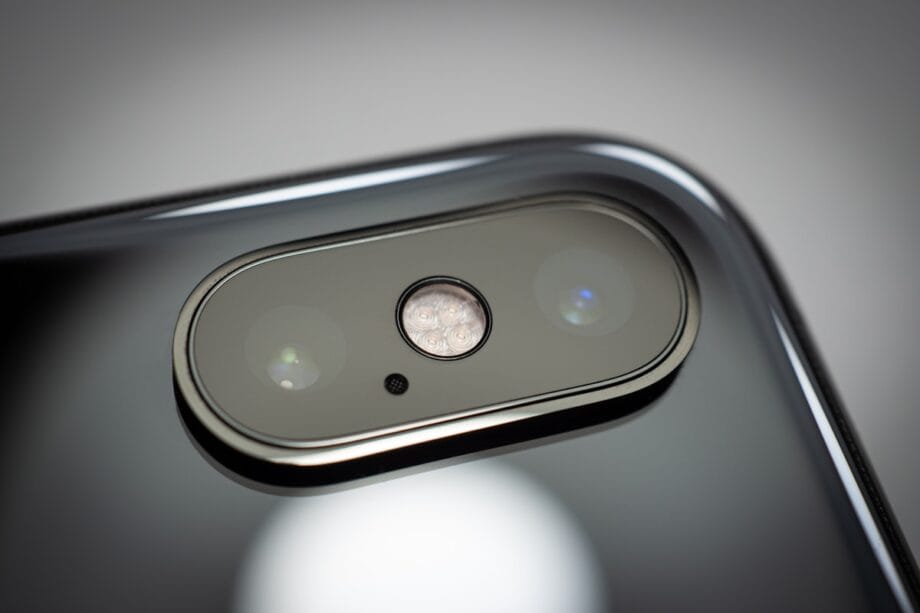
For instance, in Google Meet, navigate to the video settings and select your phone as the active webcam instead of the laptop’s built-in option.
Moreover, the experience improves further. You can access configuration controls directly from the “Webcam” notification on your phone.
This interface allows you to switch between your front and rear cameras and adjust the zoom level. However, note that you are limited to the primary camera sensors, excluding wide-angle or telephoto lenses.
And that encapsulates the entire procedure. Once completed, you will experience a transformative improvement in your video call quality. The primary consideration lies in how to properly mount your phone to ensure it’s directed at your face.
For those with MagSafe-compatible devices, numerous magnetic mounting solutions are available that attach securely to your monitor. Alternatively, a simple clamp mount should suffice for others.
Utilize Your Android Phone as a Wireless Microphone for Your PC
Rather than depend on your laptop’s inadequate internal microphone, consider linking your phone’s microphone to your computer.
This alternative proves particularly advantageous if your PC lacks an onboard mic, facilitating recordings or virtual meetings seamlessly. The setup is efficient, taking barely two minutes. Let’s get started.
Source link: Howtogeek.com.