Owners of Android smartwatches frequently contend with battery life that scarcely endures a full day. It is a shared experience to witness your Galaxy Watch or Pixel Watch succumb to power loss long before completing your evening routine.
This premature demise can evoke a sense of frustration, particularly for such a compact device. Consequently, many users find themselves tethered to chargers, which have become an unspoken staple on nightstands or desks.
Fortunately, there exist particular configurations within Wear OS that can remarkably augment your battery longevity. Subtle modifications regarding display settings, wireless connections, and background activities can significantly mitigate power depletion, all while retaining the essential smart features that users rely upon.
Key Takeaways
- Disabling the Always On Display serves as the most effective method for conserving battery.
- Stock watch faces are more energy-efficient than intricate third-party alternatives.
- Turning off Tilt to wake averts inadvertent screen activation.
- Bedtime Mode prevents the screen from activating during sleep.
- Disabling Wi-Fi and relying solely on Bluetooth leads to substantial energy savings.
Disable Always On Display
The display requires more power than any other component of your smartwatch, which is hardly surprising given the frequency with which we check the time.
Companies like Samsung and Google typically enable the Always-On Display feature by default, or they guide users toward activating it during initial setup.
While this feature allows the time to remain visible even when the arm is at rest, it quietly consumes approximately 1 to 2 percent of the battery every hour—a cumulative drain that can quickly escalate.
By navigating to your display settings and disabling this function, the screen will remain off until required, thereby conserving a significant amount of energy for other functionalities.
Opt for Touch to Wake
Many users prefer Tilt to wake to check the time, a concept that appears advantageous at first glance. The watch activates using the gyroscope to sense when the wrist is raised; however, it may also respond to mere ordinary movements.
Activities like driving, gesticulating during conversations, or typing can inadvertently trigger the display.
By selecting the Touch to wake option, you ensure the screen remains off until the glass is tapped or a button is pressed. This modification prolongs battery life by curtailing unnecessary activations.
Select Simple Stock Watch Faces
While animated watch faces showcasing real-time weather, heart rates, or rotating globes may dazzle the eye, they compel the processor to work harder than necessary.
Third-party faces, particularly from apps such as Facer, often operate heavy scripts in the background, driving up energy consumption. Official support from Google and Samsung demonstrates that stock watch faces are generally designed for better energy efficiency.
Additionally, opting for a watch face featuring a black background is beneficial. Given that most Wear OS devices utilize OLED technology, black pixels are inactive, consuming no power—a seemingly minor adjustment that can yield substantial benefits over time.
Manage Your Connections
Your smartwatch is equipped with antennas for Bluetooth, Wi-Fi, GPS, and sometimes LTE. Keeping all these functionalities active concurrently accelerates battery depletion. Specifically, Wi-Fi constantly seeks networks when the phone drifts beyond Bluetooth range.
For those who typically keep their phone close, Bluetooth alone suffices. You can deactivate Wi-Fi in your settings without sacrificing crucial features.
For LTE models, switching the mobile network to Auto or Off—unless you intend to venture without your phone—prevents the watch from incessantly searching for weak signals, thereby quietly draining the battery.
Filter Your Notifications
Every notification that prompts a wrist buzz causes the watch to awaken, activating the vibratory motor and illuminating the display. If your phone is inundated with countless emails or social media alerts daily, your watch mirrors each one without discretion.
Accessing the companion app on your phone to streamline your notification preferences can be advantageous. By blocking non-essential apps and limiting alerts to calls, texts, and calendar reminders, you can minimize the frequency with which the watch awakens from slumber.
It is worth noting how significantly even minor disruptions can accumulate in battery consumption throughout the day.
Activate Bedtime Mode
While sleep tracking furnishes valuable health insights, a luminous or reactive screen can interfere with restorative rest. Bedtime Mode, or Goodnight Mode, disables the display, turns off wake gestures, and silences notifications while you sleep, ensuring the screen remains dark even amidst movement.
Users who activate this mode often report retaining an additional 10 to 15 percent battery life upon awakening compared to those employing standard settings overnight. Adopting this practice can enhance morning convenience.
Uninstall Redundant Applications
It can be all too simple to install apps out of curiosity, only to neglect them afterward. Some remaining apps may continue to execute background processes, such as location tracking or data synchronization, even without active usage.
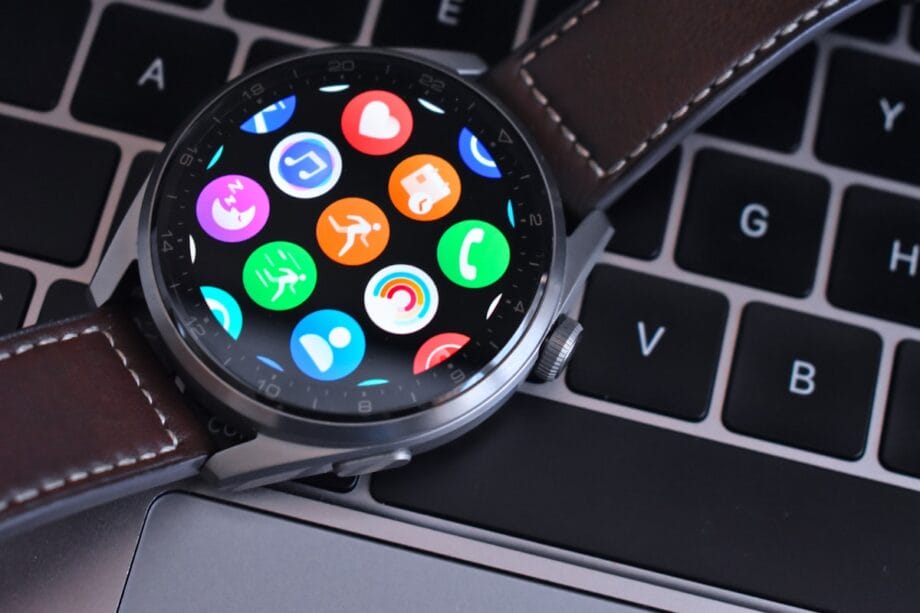
It is advisable to review your main menu and remove any applications that have not been used in the past month. This cleaning effort reduces background activity and contributes to a more fluid operating system, which in turn bolsters battery performance.
Frequently Asked Questions
Q. Does using a dark watch face actually conserve battery?
A. Indeed. Most Android devices utilize OLED or AMOLED displays, where black pixels are entirely inactive, thus consuming no power compared to lit pixels.
Q. Should I manually close background apps on my watch?
A. Generally, Wear OS manages memory efficiently on its own. However, if an app misbehaves or crashes, force-stopping it may halt sudden battery depletion.
Q. How much battery does continuous heart rate monitoring consume?
A. Continuous tracking actively checks heart rates every second or minute, keeping the sensor in operation. Adjusting this feature to “Every 10 minutes” or “Manual only” can significantly extend battery life.
Q. Does GPS usage drain the battery quickly?
A. Yes, GPS is one of the most power-intensive features. If you embark on a run without your phone, expect your watch’s battery to diminish considerably faster than usual.
Q. Will a factory reset enhance battery life?
A. A factory reset may indeed improve performance if a software update has triggered anomalies or if corrupted data is causing excessive battery drain. This process effectively rejuvenates the device.
Source link: Pc-tablet.com.