Quick Summary
The “Outlook data file cannot be accessed” error (0x8004010F) usually happens due to a corrupted PST file, damaged Outlook profile, incorrect file location, oversized data file, permission issues, faulty add-ins, or network problems.
To fix it, start with simple steps like restarting Outlook, verifying the PST file path, checking file permissions, and disabling add-ins. If the issue persists, create a new Outlook profile or repair the PST file using ScanPST. For severely corrupted or large PST files, a professional repair tool can help restore emails and other mailbox data safely.
Introduction
Numerous individuals using Outlook have posted on various forums saying they are experiencing – Outlook data file cannot be accessed – Ox8004010F error while sending or receiving messages. This is an error message that means that there is corruption in the Outlook data file (PST). However, the error may also occur due to various reasons. In this article, we will discuss the possible reasons that can cause this Outlook error and see the methods of fixing it.
Understanding the Reasons for the “Outlook data file cannot be accessed” Error
Below we have listed the possible reasons that cause this Outlook error:
- Corrupted Outlook profile.
- Corrupted Outlook data file (PST).
- Incorrect PST file location.
- Large-sized PST file, or has reached the recommended size limit.
- Network connectivity issues.
- Conflicting or faulty add-ins.
- Permission issues with the associated file or folder.
Methods to Fix the “Outlook data file cannot be accessed” Error
Below, we have explained the solutions to fix the Outlook data file cannot be accessed error. You can use the appropriate solution:
1. Close and Restart Outlook
Before starting any troubleshooting method, try closing and restarting Outlook – one of the simplest and quickest methods – to resolve this issue. When you close the application, it clears all the temporary files and background processes that may cause an error. Restarting Outlook allows the program to start fresh. Follow the given steps to close and restart Outlook:
Step 1: Close Outlook on your device.
Step 2: Press Ctrl+Shift+Esc keys to open the Task Manager.
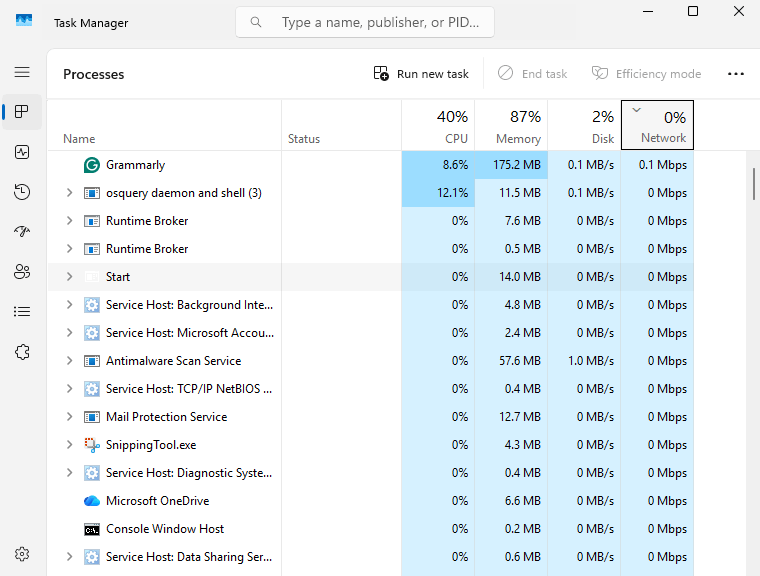
Step 3: Go to the Processes tab and look for Outlook.exe.
Step 4: Now, select the process and click ok End Task.
When you end the task, wait for a few seconds before opening Outlook. This will prevent any background processes or Outlook-related services from running.
2. Verify the Outlook Data File (PST) Path
You may experience the error 0x8004010 if your Outlook is unable to find it at the default locations. So, you need to verify the PST file location to resolve this issue. Here are the steps to follow:
Step 1: Check your PST file path. Default path is “C:\Users\<username>\Documents\Outlook Files\“.
Step 2: In case the PST file is not present at the default setting, then locate the PST file and revert it to the default setting.
3. Check and Assign File Permissions
At times, Outlook may display the error “Outlook data file cannot be accessed” due to insufficient PST file permissions. To check and assign the required permissions, follow these steps:
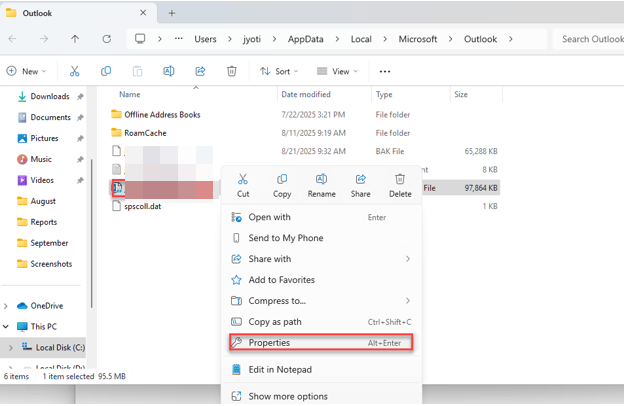
Step 1: Go to the PST file location and right-click.
Step 2: Choose the option Properties.
Step 3: Go to the Security tab.
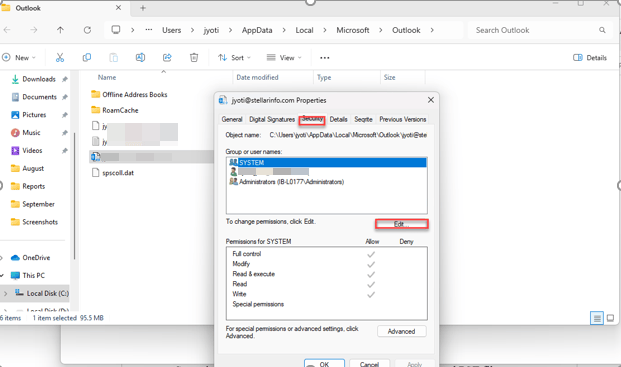
Step 4: Select Edit.
Step 5: Make sure Full Control is checked.
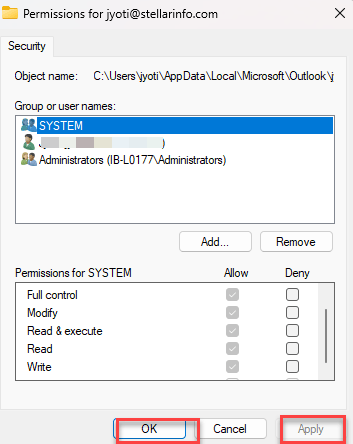
Step 6: Click Then click on Apply > OK.
4. Disable Faulty Add-Ins
Add-ins can be used to enhance the functionality of Outlook. However, at times, incompatible or defective add-ins may intervene in both Outlook and the data file, which may lead to the error. This issue can be resolved by finding and disabling the objectionable add-ins. Here’s how.
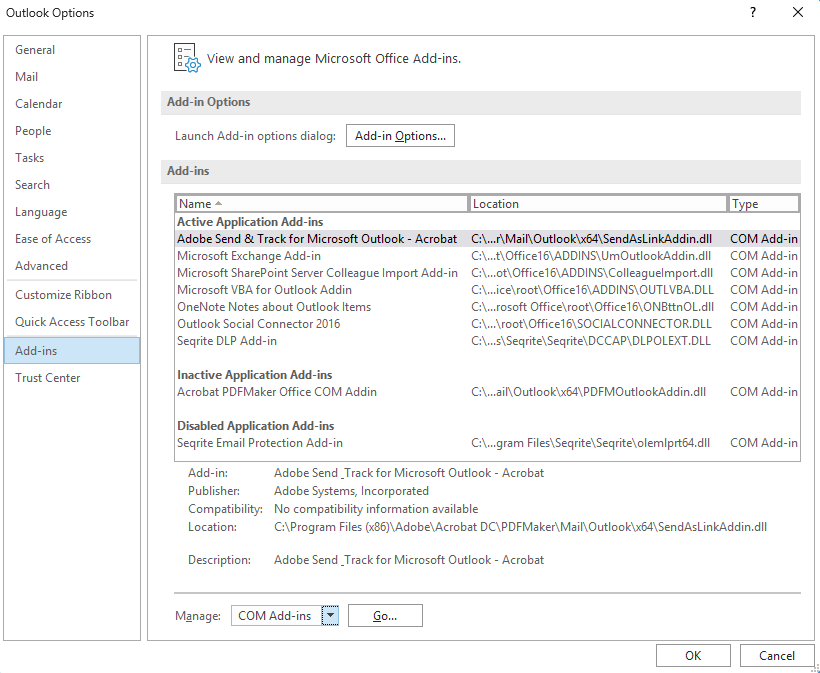
Step 1: Go to File > Options > Add-ins.
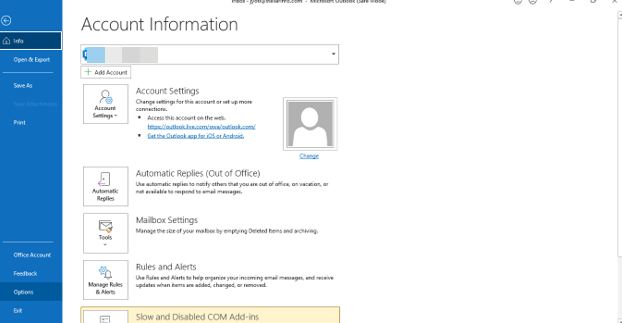
Step 2: Under View and manage Office add-ins, on the ‘Manage’ dropdown, choose COM Add-ins and then click Go.
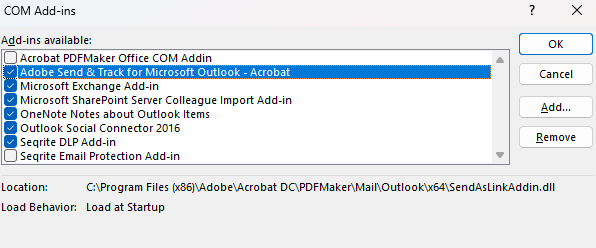
Step 3: Uncheck all the available add-ins from the list and click OK.
Step 4: Then, click on File > Exit to exit from Outlook.
Step 5: Finally, start Outlook as usual.
Make sure to restart your Outlook after enabling or disabling every add-in. When you find any add-in with a problem, delete it completely from Outlook.
5. Create a New Outlook Profile
If none of the above methods worked, then the error may be caused by a corrupted Outlook profile. Creating a new Outlook profile is an effective way to solve this error. Follow the steps below to do so:
Step 1: Make sure Outlook is closed.
Step 2: Open Control Panel.
Step 3: Click on the Programs > User Accounts > Mail.
Step 4: Click the “Show Profiles” button, click on “Add”, and enter a new profile name.
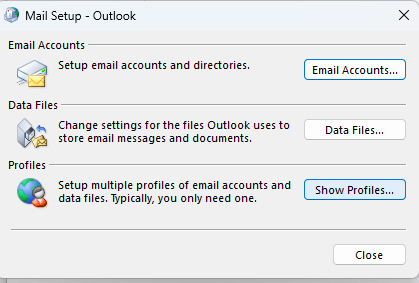
Step 5: After entering your name, confirm your email address.
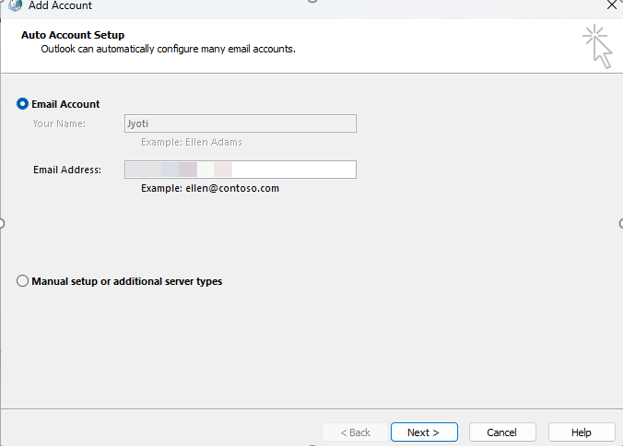
Step 6: Click on Next, and Click Finish.
Step 7: Make the new Outlook profile your default profile by choosing the option Always use this profile.
Step 8: Click Ok.
6. Repair Your PST File
When your PST file is corrupted or damaged due to reasons like abrupt application/system shutdown, or disk errors, Outlook may display the error “Outlook Data File cannot be accessed”. You can solve this error by repairing the PST file. The steps to repair a PST file with SCANPST include:
Step 1: Close Outlook completely if it is open.
Step 2: Next, find the ScanPST location on your computer. By default, it is located at: C:\Program Files (x86)\Microsoft Office\root\OfficeXX or C:\Program Files\Microsoft Office\OfficeXX.
Step 3: Now, double-click on ScanPST to open the tool.

Step 4: Click on Browse and choose your PST file.
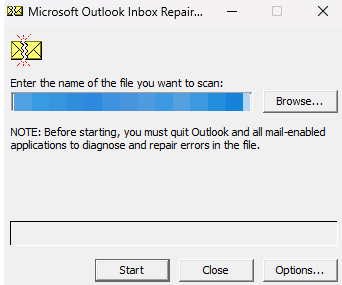
Step 5: Click on Start to begin the scanning process.
Step 6: After completing the scan, if problems are found, then click on Repair.
While ScanPST.exe can repair a corrupted PST file, it has a few limitations. For instance, it cannot repair large, badly damaged files. In such cases, you need a professional PST repair tool, such as Stellar Repair for Outlook. It can repair severely corrupted PST files of any size and restore all your mailbox items, such as emails, attachments, tasks, and calendars, to a new PST file.
And this tool preserves the folder structure and hierarchy while repairing. It can also auto-split a large PST file into smaller files by different criteria, including email ID, date, and size. This also helps guard against PST file corruption that can result from a large size.
Conclusion

The 0x8004010F: Outlook data file can’t be accessed because of multiple reasons, as I have explained in this blog. However, you can try the fixes listed above corresponding to your issue so that the error will be resolved.
However, if PST file corruption is severe, it is advisable to use a professional PST repair tool to fix the file and retrieve all the elements, guaranteeing full data recovery.