Enhancing Your iPhone Photography: Viewing Outside the Frame
Activating the View Outside the Frame feature on an iPhone can greatly benefit smartphone photographers.
If you own one of the more recent models, namely the iPhone 11, 12, 13, or 14, you may have already encountered this intriguing option within your Camera Settings.
By default, this feature is switched off for photos but enabled for videos. Understanding its application and timing can significantly elevate your photographic skills.
The purpose is straightforward: this setting grants you a glimpse of what lies beyond the confines of your photo’s frame.
Such insight permits a reevaluation of your composition, allowing for nuanced adjustments—an invaluable asset while capturing expansive landscapes or architectural marvels.
The Rationale Behind Using the View Outside Feature
This feature proves advantageous for street photography as well, enabling you to maintain awareness of your surroundings and anticipate potential subjects entering your frame.
Many photographers appreciate the optical viewfinders found in DSLRs and select mirrorless models like the Fujifilm X-Pro3 for similar reasons.
With this configuration enabled, you can also zoom out—or, more technically, “crop out”—after taking a photograph, unveiling a broader vista beyond your initial composition.
This functionality is beneficial during post-editing, alleviating concerns about achieving the perfect shot in a moment of haste while ensuring no significant elements are inadvertently excluded from the periphery.
Think of it as a fortuitous opportunity to secure that ideal image or, perhaps, a more adaptable approach to photographic capture.
If this feature intrigues you, activating it is a simple endeavor. Follow the instructions below to enable View Outside the Frame.
Steps to Activate View Outside the Frame on iPhone
- Navigate to Settings > Camera
- Turn on View Outside the Frame
Upon activation, a subtle gray border will appear around the edges of your camera preview, indicating the area captured beyond the frame.
To utilize this functionality, compose your shot as usual, keeping an eye on the gray border. If an element piques your interest, gently adjust the camera until it falls within this delineated area.
Subsequently, after capturing your image, you can access it in the Photos app and pinch to zoom out. This action will reveal any content that was included beyond the original frame.
Optimal Tips for Employing View Outside the Frame
- Ideal for Landscapes and Architecture: This feature is particularly effective for expansive shots of landscapes and structures. Recognizing what exists outside the frame ensures you include all desired facets in your photograph.
- Beneficial for Street Photography: Keeping tabs on the gray border enriches your street photography experience. It helps capture everything transpiring around you, aiding in the documentation of spontaneous moments.
- Advantageous for Editing: Even if you neglect to leverage View Outside the Frame during shooting, it can be instrumental in post-processing.
Zooming out reveals elements captured outside the frame, providing opportunities to refine your composition.
Embracing the View Outside the Frame feature can significantly enhance your photographic endeavors with your iPhone.
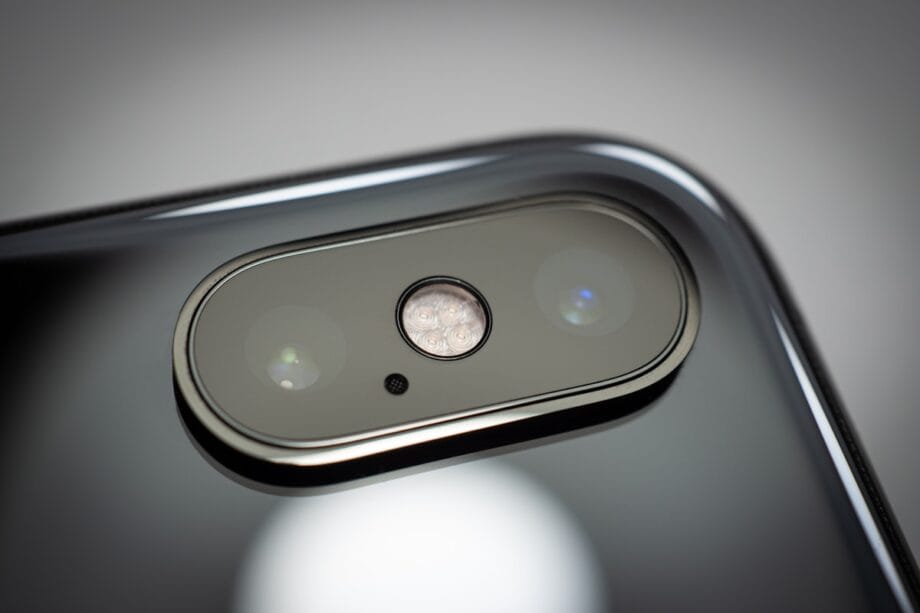
If you haven’t tried it yet, I encourage you to explore this functionality; you may be astonished at how it enriches your artistry.
Source link: Brandsynario.com.